Avaya IP Office Release 9.1 Service Pack 4 (R9.1.4)

LOGO-Avaya_Inc

Avaya have officially released Service Pack 4 for Release 9.1 of IP Office. R9.1.4 includes many fixes for issues such as system restarts and a fix for the Chrome/Firefox error which has appeared in recent releases of the browsers.

There are also several fixes for SoftConsole which has been particularly buggy since R9.1 was released.

Full Technical Bulletin release notes can be found HERE.

Avaya IP Office: Web Manager/One-X Portal Error - Server has a weak, ephemeral Diffie-Hellman public key

Affected Version(s):

IP Office R9.0 and R9.1 (but may affect earlier versions)
Google Chrome version 45 (but may affect earlier versions at a later stage)

Problem Details:

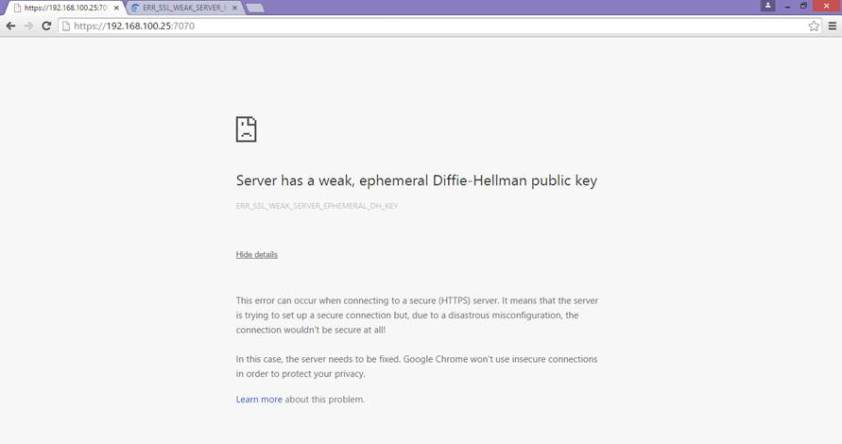
Users are unable to access Web Manager and/or One-X Portal due to the following error:

Server has a weak, ephemeral Diffie-Hellman public key

This error can occur when connecting to a secure (HTTPS) server. It means that the server is trying to set up a secure connection but, due to a disastrous misconfiguration, the connection wouldn’t be secure at all!

In this case, the server needs to be fixed. Google Chrome won’t use insecure connections in order to protect your privacy.

Chrome Error

Cause:

As of Chrome version 45, this error message is triggered if the SSL/TLS handshake attempts to use a public key, smaller than 1024 bits, for ephemeral Diffie-Hellman key agreement. This change may be back-ported to earlier Chrome versions.
You may find that the site works in other browsers. This is because other browsers, unknowingly or intentionally, work around the broken servers. But this doesn’t change the fact that the servers have a glaring security hole and should be fixed.

Solution:

Use Internet Explorer/Firefox or upgrade to R9.1.4 (which contains a fix for this issue).

References

ShoreTel Connect

ShoreTel Connect

Over the last couple of days, ShoreTel have been releasing more details on their latest offering - ShoreTel Connect. They have launched the below “A Day In The Life” video to show off exactly how brilliantly simple Connect is:

In addition to this short “A Day In The Life” video, you can click on the ShoreTel Connect logo above or below to find out more details such as:

  • Overviews
  • Quick Views
  • Service and Product Plans
  • Contact Center
  • Mobility
  • ShoreTel Services
  • System Management
  • Hardware
  • Applications
  • Selling Guides
  • Competitive Information

ShoreTel-Connect puzzle color

Avaya IP Office: Off-hook Auto Dial

Affected Version(s):

R7.0 and above.

Problem Details:

On Avaya phones with a fixed Call Log or History button (1400, 1600, 9500 and 9600 Series), if the button for CALL LOG/HISTORY or CONTACTS on the phone is selected and handset goes Off-hook then the first number on top of the list get dialed automatically.

For example, if a user is in their Call Log and a call then comes in on their handset, if they want to answer the call, they have to exit the Call Log before they can answer the call, otherwise it will make an outbound call to the Log entry they were on.

Cause:

Working as designed.

Solution:

The behaviour was specifically added as a feature with the Centralized Call Log and 1400, 1600, 9500, 9600, 96×1 Series handsets.

The older 4600, 2400, 5400 and 5600 Series handsets are different since they have their own Call log and functionality.

You can however raise a GRIP request with Avaya to request this functionality is removed to avoid this from happening.

References

ShoreTel: ShoreGear T1 and BRI Switch Failure after Upgrade

Affected Version(s):

ShoreTel 14.2 build 19.45.8701.0

Problem Details:

ShoreTel ShoreGear T1 and BRI switches using CAS or BRI trunk types have experienced switch failures after upgrading to ShoreTel 14.2 build 19.45.8701.0. Customers who have upgraded to this build might have noticed the following issues:

• Inbound calls do not work, but outbound calls do work
• ShoreGear T1 and BRI switches that host CAS or BRI trunks might crash and reboot every 5 minutes

Cause:

Upgrading to ShoreTel 14.2 build 19.45.8701.0.

Solution:

The current solution is to download the patch provided on ShoreTel’s website: http://bit.ly/1WCN2Wc

You should only apply this patch to the switches that are running build 19.45.8701.0 and have experienced this issue. Detailed instructions for applying the patch are provided as part of the download file.

Avaya IP Office: SoftConsole Issues in R9.1

Affected Version(s):

R9.1 pre-SP4

Problem Details:

SoftConsole encounters random issues such as freezing and unexpected behaviour.

Cause:

This is caused by a software deficiency.

Solution:

A custom build of SoftConsole can be obtained from Avaya Tech Support as a general release fix has not yet been implemented. This will however be resolved in R9.1 SP4. If you do need the custom build, raise a ticket with Avaya Tech Support and quote the following reference: SOLN273047

References

Avaya IP Office: Alarm Calls in Voicemail Pro - Part 2

Introduction

This How-To covers the second method to setup alarm calls in Voicemail Pro - user initiated alarms setup through a Short Code. This guide was based around R9.1, but should apply to earlier versions of IP Office as well.

Steps:

1: Open Voicemail Pro Client

Open the Voicemail Pro Client and login to the system. Once logged in, navigate to Modules on the bottom left hand pane.

alarm3

2: Create New Module

Once in the Modules section, right click and select “Add”. This will open up a new window asking you to enter the name of the module.
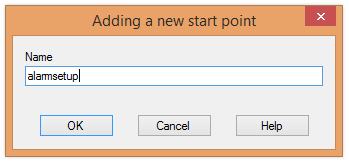
alarm4

3: Customize Module

After confirming the name of the module, you will then be prompted with a blank Module. Click on the Miscellaneous Actions button and add in an Alarm Set action and link the Start Point to it.
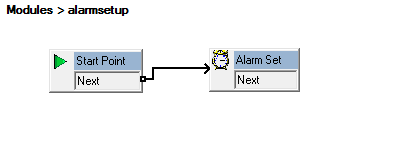
alarm5

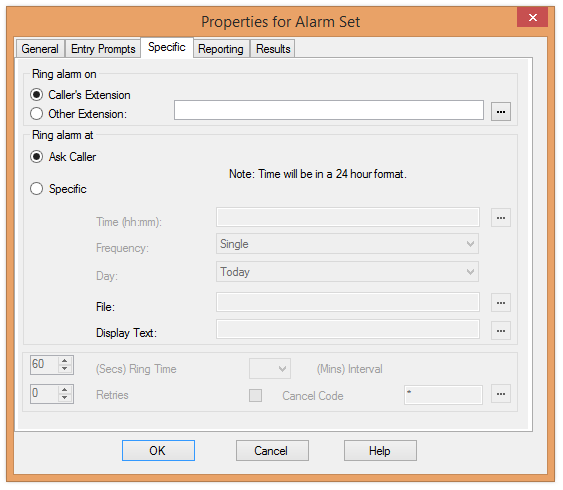
Double click on the Alarm Set to access it’s properties. From here, go to the Specific tab and you will see a similar set of options that were seen in Part 1, but with the addition of using the Caller’s Extension as the Target and to Ask Caller for the Alarm Details:

Caller’s Extension (uses the caller’s Extension Number to set the Target)
Other Extension (use this to pre-determine an Extension Number in the Module)
Ask Caller (Asks the caller to input the alarm details over the phone)
Time (hh:mm)
Frequency (Single, Daily, Weekly)
Day (Today, Monday, Tuesday, Wednesday, Thursday, Friday, Saturday, Sunday)
File (Recording to play when the system makes the alarm call)
Display Text (Display a text message on the screen of the phone with the alarm call)
Ring Time (Seconds)
Retries
Interval (Minutes: 1 to 15)
Cancel Code
alarm6

Once configured to your needs, all that is left on the Voicemail Pro config side of things is to press OK to confirm the module details and then Save & Make Live the config.

4: Open IP Office Config

Once saved, close down the Voicemail Pro client and open up the IP Office configuration.

5: Create Short Code

Create a new Short Code setup as follows:

Code: *79 (Or something that is not currently in use by your IP Office)
Feature: Voicemail Collect
Telephone Number: “alarmsetup” (Where alarmsetup is the name of the Module you created in Step 2. Please leave the speech marks around the name though!)
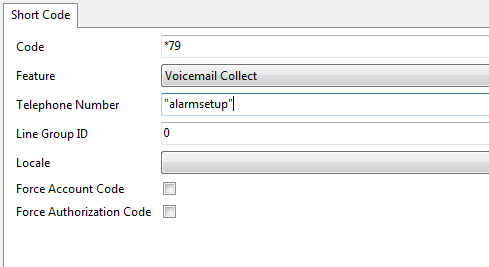
alarm12

6: Save Config

Once you have created the Short Code, save the config and then test to make sure it works.

Conclusion

You should now be able to setup a user initiated alarm call through Voicemail Pro. Please note however that only 2 alarm calls can be in progress at any one time.